Lab-1-5
(2% of the course mark)
Express.js API Compression Lab
- Students will learn how to integrate and configure compression middleware in an Express.js app. They will understand the importance of response compression in improving API performance and reducing bandwidth usage.
Lab objectives
-
Explain why compression is beneficial for API performance and how it impacts bandwidth usage.
-
Install and configure the compression middleware in an Express application.
-
Customize compression settings to optimize performance for different content types and scenarios.
-
Verify that responses are being compressed using tools such as Postman or browser developer tools.
Create Node.js Express app
-
Open VSCode and create a folder named Express-API-COMPRESSION.
-
Open the terminal and change the directory to Express-API-COMPRESSION.
-
Initialize the app by running the following command:
npm init -y
- Install typescript by running the following commands:
npm install typescript -D
npm install @types/node -D
- Initialize tsconfig.json by running the following command:
npx tsc --init
-
Modify tsconfig.json and uncomment outDir.
-
Modify tsconfig.json and add the following property:
"removeComments": true
- Install nodemon by running the following command:
npm install nodemon -D
- Install dotenv by running the following command:
npm install dotenv
- Create an .env file in the root of your project and enter the following.
PORT=3000
- Install express by running the following commands:
npm install express
npm install @types/express -D
- Configure package.json by adding a new entry to the scripts property.
"build": "tsc",
"start": "nodemon ./dist/index",
- Configure package.json by adding a new property.
"type": "module"
- Install compression by running the following command:
npm install compression
npm install @types/compression -D
-
In the root folder of the app, create a folder named repositories.
-
In the repositories folder, create a file named photosRepository.ts and add the following code, from the file below:
-
In the root folder of the app, create a folder named middlewares.
-
In the middlewares folder, create a file named compress.ts and add the following code:
// Developer:
// Purpose:

import { type Request, type Response, type NextFunction } from "express";
import compression from "compression";

export function compressResponse(
  req: Request,
  res: Response,
  next: NextFunction
) {
  return compression({ threshold: 0 })(req, res, next);
}
- Create a file named index.ts and add the following code:
// Developer:
// Purpose:

import * as dotenv from "dotenv";
dotenv.config();

import express, { type Request, type Response } from "express";

const PORT: number = process.env.PORT ? parseInt(process.env.PORT) : 3000;
const app = express();

import { compressResponse } from "./middlewares/compress.js";
import { photos } from "./repositories/photosRepository.js";

// Uncompressed photos route
app.get("/photos", (req: Request, res: Response) => {
  res.json(photos);
});

// Compressed photos route
app.get("/compress/photos", compressResponse, (req: Request, res: Response) => {
  res.json(photos);
});

app.all("/{*catchAll}", (req: Request, res: Response) => {
  res.status(404).json({
    message: `Invalid route (${req.url}) or HTTP method (${req.method}).`,
  });
});

app.listen(PORT, () => {
  console.log(`Server is running at http://localhost:${PORT}`);
  process.on("SIGTERM", shutdown);
  process.on("SIGINT", shutdown);
});

function shutdown() {
  console.log(`Server is shutting down.`);
  process.exit(0);
}
- Build the app by running the following command:
npm run build
- Start the app by running the following command:
npm run start
Verify that your Express app starts without errors before proceeding to the next step.
Developer tools testing
-
Open the browser's Developer Tools, click on the Network tab, and ensure that Disable Cache is checked.
-
Open your browser and navigate to: http://localhost:3000/photos. Take a screenshot and save it as not-compressed.png.
xxxx kB transferred xxxx kB resources Finish: xxxx ms DOMContentLoaded: xxxx ms Load: xxxx ms.
- Open your browser and navigate to: http://localhost:3000/compress/photos. Take a screenshot and save it as compressed.png.
xxxx kB transferred xxxx kB resources Finish: xxxx ms DOMContentLoaded: xxxx ms Load: xxxx ms.
- Compare the results from both screenshots, what conclusions can you draw? Take note of your conclusion, as you will need to write it in the Comments text area when submitting this lab.
Submission
- Create a folder named submit.
Delete the node_modules folder on any app that you are submitting.
-
Copy the Express-API-COMPRESSION folder and all the screenshots (not-compressed.png and compressed.png) to the submit folder. Write your conclusion in the Comments text area.
-
Create a zip file of the submit folder.
-
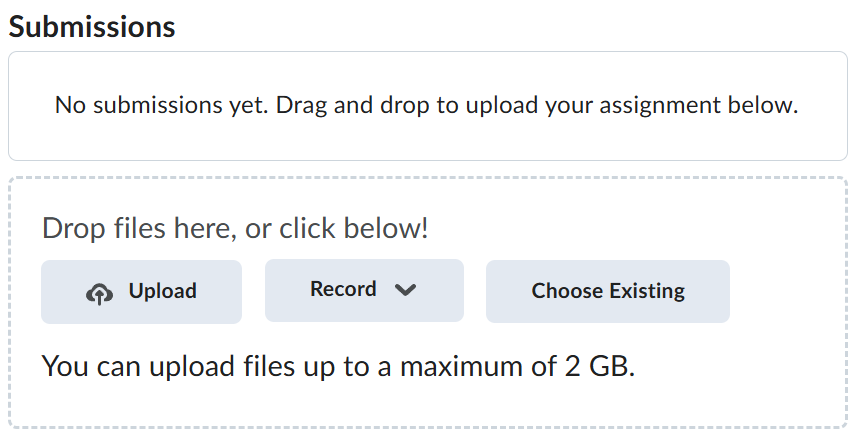
Navigate back to where the lab was originally downloaded, there should be a Submissions section (see below) where the zip file can be uploaded.